
This guide provides a straightforward process for requesting video footage from Journey’s Visual Selector, ensuring users can efficiently access the specific video clips they need. By following the outlined steps, users can easily navigate the system, check vehicle status, and create video clips based on their desired routes. It’s an essential resource for anyone looking to streamline their video request process and enhance their operational efficiency.
1.
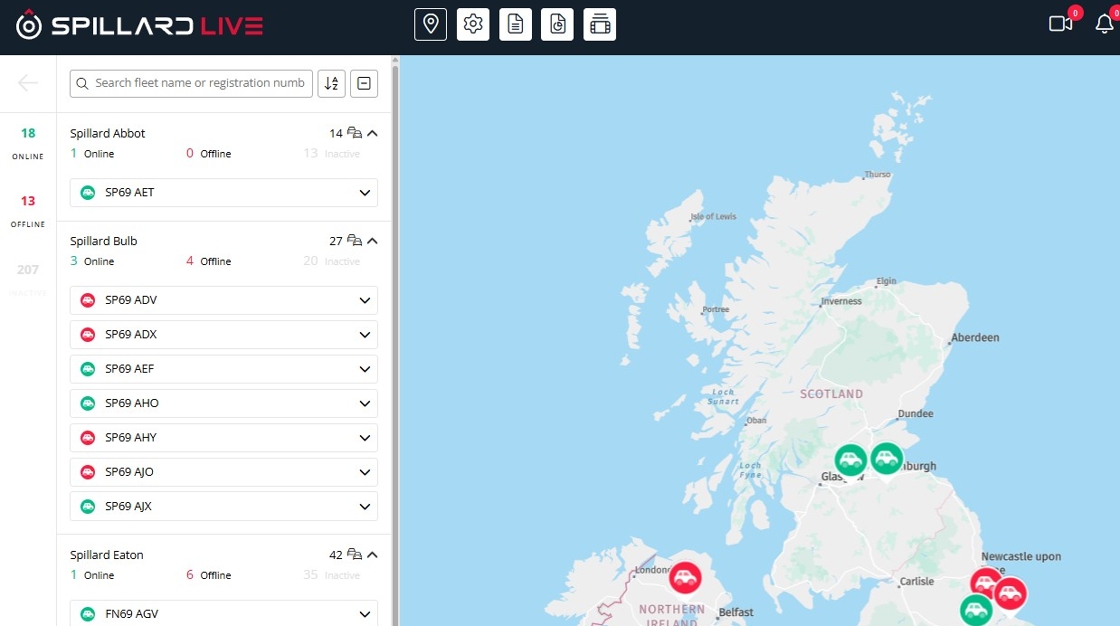
2. Click “Registration”

3. Click “Journey Panel”

4. Check vehicle is online

5. Zoom to location of required video

6. Click “Visual Selection”

7. Click this range field.

8. Click this range field.

9. The blue line highlights the route for video clip creation

10. Click “Request video”

11. Green progress bar shows request has been sucessfull
